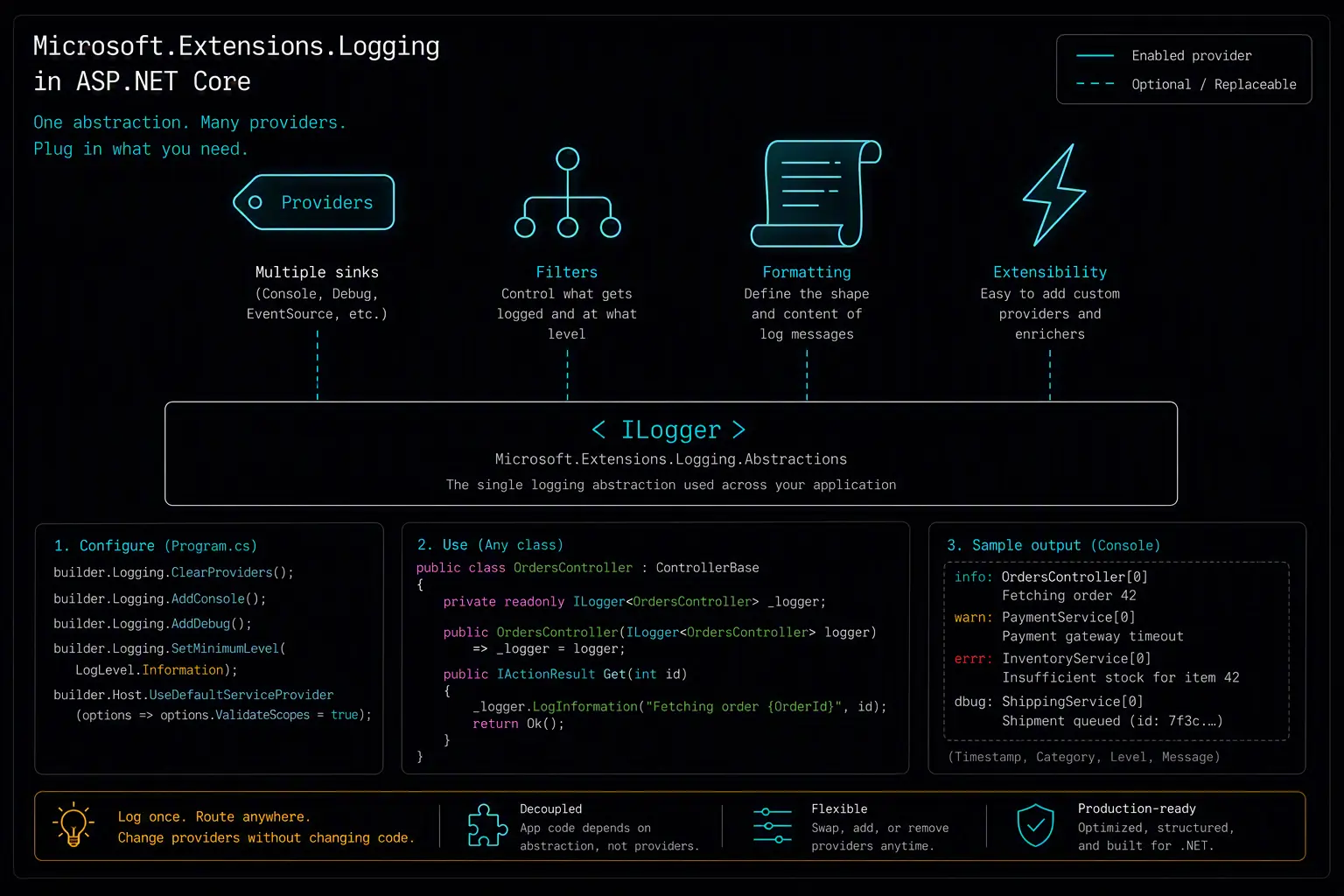
Setting up Microsoft.Extensions.Logging in ASP.NET Core looks trivial at first glance - it's already wired in by default - but that's exactly what trips people up. Because there's no NuGet package to install and no obvious "getting started" moment, most developers never learn how the log level hierarchy actually resolves, how to add providers cleanly, or why their appsettings.json overrides aren't taking effect the way they expect.
This guide covers the built-in logging pipeline from scratch: how the default providers are registered, the two ways to configure log levels, the startup pattern for both ASP.NET Core apps and Worker Services, and how to use ILogger<T> correctly once it's wired up. By the end you'll understand the foundation that NLog, Serilog, and log4net all plug into - which makes those libraries much easier to reason about once you decide you need one.
If you eventually outgrow the built-in providers, a comparison of the top .NET logging frameworks is worth reading afterward to see what each one adds on top of this foundation.
What You'll Need
- .NET 8 SDK or later
- An ASP.NET Core Web API, Blazor, or Worker Service project
- NuGet access (only needed if you want additional providers beyond the built-in ones)
No third-party log server or package is required for this guide - everything here uses the console and debug providers that ship with the SDK. Later articles in this series cover swapping in NLog, Serilog, or EventSource-based providers.
Installing Microsoft.Extensions.Logging
For ASP.NET Core Web API and Blazor projects, nothing needs to be installed. Microsoft.Extensions.Logging and its default providers (Console, Debug, EventSource, and EventLog on Windows) are included automatically via the shared framework when you call WebApplication.CreateBuilder(args).
For a Worker Service, the templates also include it by default via Host.CreateApplicationBuilder(args). For a plain console app that isn't using either builder, add it explicitly:
dotnet add package Microsoft.Extensions.Logging
dotnet add package Microsoft.Extensions.Logging.Console
There's no "one package gets you everything" step here the way there is with third-party libraries - the trade-off for having it built in is that each additional provider (Microsoft.Extensions.Logging.EventLog, Microsoft.Extensions.Logging.ApplicationInsights, etc.) is its own explicit NuGet reference.
The Two Configuration Approaches
Microsoft.Extensions.Logging supports two ways to control log levels and providers. You can combine both - code-based configuration runs after configuration-based settings are applied, so it can layer on top.
Approach 1: appsettings.json
This is the default and by far the most common approach:
{
  "Logging": {
    "LogLevel": {
      "Default": "Information",
      "Microsoft.AspNetCore": "Warning",
      "Microsoft.EntityFrameworkCore": "Warning",
      "System.Net.Http": "Warning"
    },
    "Console": {
      "LogLevel": {
        "Default": "Information"
      },
      "FormatterName": "simple",
      "FormatterOptions": {
        "SingleLine": true,
        "TimestampFormat": "yyyy-MM-dd HH:mm:ss ",
        "IncludeScopes": true
      }
    }
  }
}
Key things to understand about this section:
| Key | Purpose |
|---|---|
Logging:LogLevel:Default |
Fallback minimum level for any category not explicitly listed |
Logging:LogLevel:"Microsoft.AspNetCore" |
Namespace-prefixed override - matches any logger category starting with that string |
Logging:<ProviderAlias>:LogLevel |
Per-provider override; lets the console be quieter than the file/EventLog provider, for example |
FormatterOptions |
Console-specific formatting: single-line output, timestamp format, whether to include BeginScope values |
The category-matching is prefix-based and picks the most specific match. A logger created for MyApp.Controllers.OrderController will match "Microsoft.AspNetCore" only if that string is a prefix - it isn't here, so it falls through to Default.
You can also add appsettings.Development.json to override levels locally without touching production configuration:
{
  "Logging": {
    "LogLevel": {
      "Default": "Debug",
      "Microsoft.AspNetCore": "Information"
    }
  }
}
Approach 2: Code-based configuration
If you'd rather configure logging in Program.cs directly - useful for conditional logic based on environment, or for adding providers that don't have a JSON schema - use the ILoggingBuilder:
builder.Logging.ClearProviders();
builder.Logging.AddConsole(options =>
{
    options.FormatterName = "simple";
});
builder.Logging.AddDebug();

builder.Logging.AddFilter("Microsoft.AspNetCore", LogLevel.Warning);
builder.Logging.AddFilter("System.Net.Http", LogLevel.Warning);
builder.Logging.SetMinimumLevel(LogLevel.Information);
AddFilter is the code equivalent of the LogLevel overrides in appsettings.json, and both can be present at once - configuration-based filters are applied first, and any AddFilter calls layer on top of them.
Program.cs Setup: ASP.NET Core (.NET 8)
Because the logging pipeline is already registered by WebApplication.CreateBuilder, there's no separate "enable logging" step - you're just adjusting what's already there:
var builder = WebApplication.CreateBuilder(args);

// Providers and appsettings.json Logging section are already wired up here.
// Clear and re-add only if you want a different provider set than the defaults.
builder.Logging.ClearProviders();
builder.Logging.AddConsole();
builder.Logging.AddDebug();

builder.Services.AddControllers();
builder.Services.AddEndpointsApiExplorer();

var app = builder.Build();

app.UseHttpsRedirection();
app.MapControllers();
app.Run();
There's no try/catch/finally requirement the way there is with NLog or log4net. The built-in console and debug providers write synchronously and don't buffer in a way that risks losing entries on shutdown, so there's nothing to explicitly flush. If you add a provider that does buffer (Application Insights, for example), check that provider's own documentation for shutdown guidance.
Program.cs Setup: Worker Service
Worker Services use Host.CreateApplicationBuilder, and the built-in logging setup is essentially identical - the framework registers the same default providers regardless of which builder you start from:
var builder = Host.CreateApplicationBuilder(args);

builder.Logging.ClearProviders();
builder.Logging.AddConsole();
builder.Logging.AddEventSourceLogger();

builder.Services.AddHostedService<OrderProcessingWorker>();

var host = builder.Build();

host.Run();
AddEventSourceLogger() is worth calling out here - it's a built-in provider that makes your logs visible to tools like dotnet-trace and PerfView without any external dependency, which is particularly useful for long-running Worker Services where attaching a debugger isn't practical.
Injecting and Using ILogger
This is the part that doesn't change no matter which provider is behind it - ILogger<T> is the same interface whether Microsoft.Extensions.Logging's own providers are handling it or NLog/Serilog/log4net have been swapped in underneath:
public sealed class OrderController : ControllerBase
{
    private readonly ILogger<OrderController> _logger;
    private readonly IOrderService _orderService;

    public OrderController(
        ILogger<OrderController> logger,
        IOrderService orderService)
    {
        _logger = logger;
        _orderService = orderService;
    }

    [HttpPost("{orderId}/process")]
    public async Task<IActionResult> ProcessOrder(int orderId)
    {
        _logger.LogInformation("Received request to process order {OrderId}", orderId);

        try
        {
            await _orderService.ProcessAsync(orderId);
            _logger.LogInformation("Order {OrderId} processed successfully", orderId);
            return Ok();
        }
        catch (OrderNotFoundException ex)
        {
            _logger.LogWarning(ex, "Order {OrderId} not found", orderId);
            return NotFound();
        }
        catch (Exception ex)
        {
            _logger.LogError(ex, "Unexpected error processing order {OrderId}", orderId);
            return StatusCode(500);
        }
    }
}
Use message template syntax - {OrderId} rather than $"Order {orderId}". This matters even more here than with third-party libraries: the built-in console formatter can render structured values as key-value pairs when IncludeScopes is enabled, and any downstream provider you add later (Application Insights, OpenTelemetry) relies on the named placeholder being preserved rather than collapsed into a plain string.
You can also attach scoped context with BeginScope, which the console formatter will include when IncludeScopes is set:
using (_logger.BeginScope("OrderId:{OrderId}", orderId))
{
    _logger.LogInformation("Starting order processing pipeline");
    // Every log line inside this scope carries the OrderId context
}
Verifying Your Setup
After running the application, check:
- Console output appears in the format your
FormatterOptionsspecify - Log levels are respected - messages below your configured minimum shouldn't appear
- Namespace overrides work -
Microsoft.AspNetCorerequest logs should sit atWarningif you configured it that way, not flood the console atInformation - Scopes appear when enabled - if you set
IncludeScopes: true,BeginScopevalues should show up wrapped around related log lines
If levels aren't behaving as expected, double-check that you don't have conflicting AddFilter calls overriding your appsettings.json settings - code-based filters take precedence, and it's easy to forget one is still in Program.cs after moving configuration into JSON.
Configuration Best Practices
Prefer appsettings.json over code-based filters for anything environment-specific. It's easier for other developers (and ops) to change a log level without a rebuild.
Use appsettings.Development.json for verbose local logging, and keep production Logging:LogLevel:Default at Information or higher.
Explicitly override noisy framework categories. Microsoft.AspNetCore, Microsoft.EntityFrameworkCore, and System.Net.Http are the most common sources of console noise - set them to Warning unless you're actively debugging request pipeline or query behavior.
Don't rely on the built-in providers alone in production. Console and Debug providers are great for local development, but neither persists logs anywhere durable - plan to add a provider (or a third-party library) that writes to files, a log aggregator, or Application Insights before you ship.
Enable scopes deliberately, not by default. IncludeScopes: true is useful for correlating related log lines, but it adds noise to every message - turn it on for the categories where it earns its keep rather than globally.
Comparison with NLog Setup
If you've configured NLog before, or are deciding whether you need it, here's how the pieces map:
| Microsoft.Extensions.Logging | NLog | |
|---|---|---|
| Installation | Built in (extra NuGet only for extra providers) | NLog.Web.AspNetCore package |
| Config style | appsettings.json Logging section, or ILoggingBuilder in code |
XML file or JSON section |
| Providers | Console, Debug, EventSource, EventLog (built in) | File, Console, Database, and many custom targets |
| Structured output | Basic key-value via scopes; no native structured sinks | Structured targets (Seq, Elasticsearch) via layout renderers |
| Shutdown | Not required for default providers | LogManager.Shutdown() required to flush async targets |
Both use identical ILogger<T> injection from the application code's perspective - the difference is entirely in what happens after a log call, which is exactly why libraries like NLog exist: they replace the provider, not the logging API you write against.
Frequently Asked Questions
What package do I need to use Microsoft.Extensions.Logging in ASP.NET Core?
None, for the basics. WebApplication.CreateBuilder(args) and Host.CreateApplicationBuilder(args) both register Microsoft.Extensions.Logging along with the Console, Debug, and EventSource providers automatically. You only need to add a NuGet package if you want a provider that isn't included by default, such as Microsoft.Extensions.Logging.EventLog or a third-party sink.
Should I use appsettings.json or code-based configuration for log levels?
Both work and can be combined. Use appsettings.json for anything you want to change per environment without a rebuild - this is the more common approach. Use code-based AddFilter calls in Program.cs for filters that depend on conditional logic, such as enabling verbose logging only when a specific environment variable is set.
Why don't I need a try/catch/finally pattern in Program.cs?
The built-in providers write synchronously and don't buffer output the way NLog's AsyncWrapper or log4net's file appenders do, so there's no risk of losing buffered entries on shutdown. If you add a provider that does buffer - Application Insights or a custom async sink - check that provider's documentation, since the flush requirement then depends on that specific provider rather than the core logging API.
How do I stop Microsoft.Extensions.Logging from logging noisy Microsoft framework messages?
Add namespace-prefixed overrides under Logging:LogLevel in appsettings.json:
{
  "Logging": {
    "LogLevel": {
      "Default": "Information",
      "Microsoft.AspNetCore": "Warning",
      "Microsoft.EntityFrameworkCore": "Warning"
    }
  }
}
Category matching is prefix-based, so "Microsoft.AspNetCore" covers every logger category that starts with that string, including Microsoft.AspNetCore.Routing and Microsoft.AspNetCore.Hosting.
Does Microsoft.Extensions.Logging work with .NET 8 minimal APIs?
Yes - it's the same pipeline regardless of whether you're using controllers or minimal API endpoints. WebApplication.CreateBuilder(args) wires up logging identically either way, and ILogger<T> (or the non-generic ILogger injected via app.Logger in a minimal API's top-level statements) works the same in both styles.
What's the difference between Logging:LogLevel and a provider-specific LogLevel section?
Logging:LogLevel sets the default minimum level across all providers. A section like Logging:Console:LogLevel overrides that default for just the console provider. This lets you, for example, keep the console quiet at Warning while a file or Application Insights provider (added separately) still captures Information-level detail.
How do I configure Microsoft.Extensions.Logging differently for Development vs Production?
Use appsettings.Development.json to override the Logging section for local development - ASP.NET Core automatically layers it over appsettings.json based on the ASPNETCORE_ENVIRONMENT variable. There's no equivalent to NLog's autoReload for runtime changes without a restart; configuration is read once at startup unless you explicitly enable reloadOnChange on the configuration provider and structure your code to react to IOptionsMonitor<LoggerFilterOptions>.
C# or .NET question? Ask away.