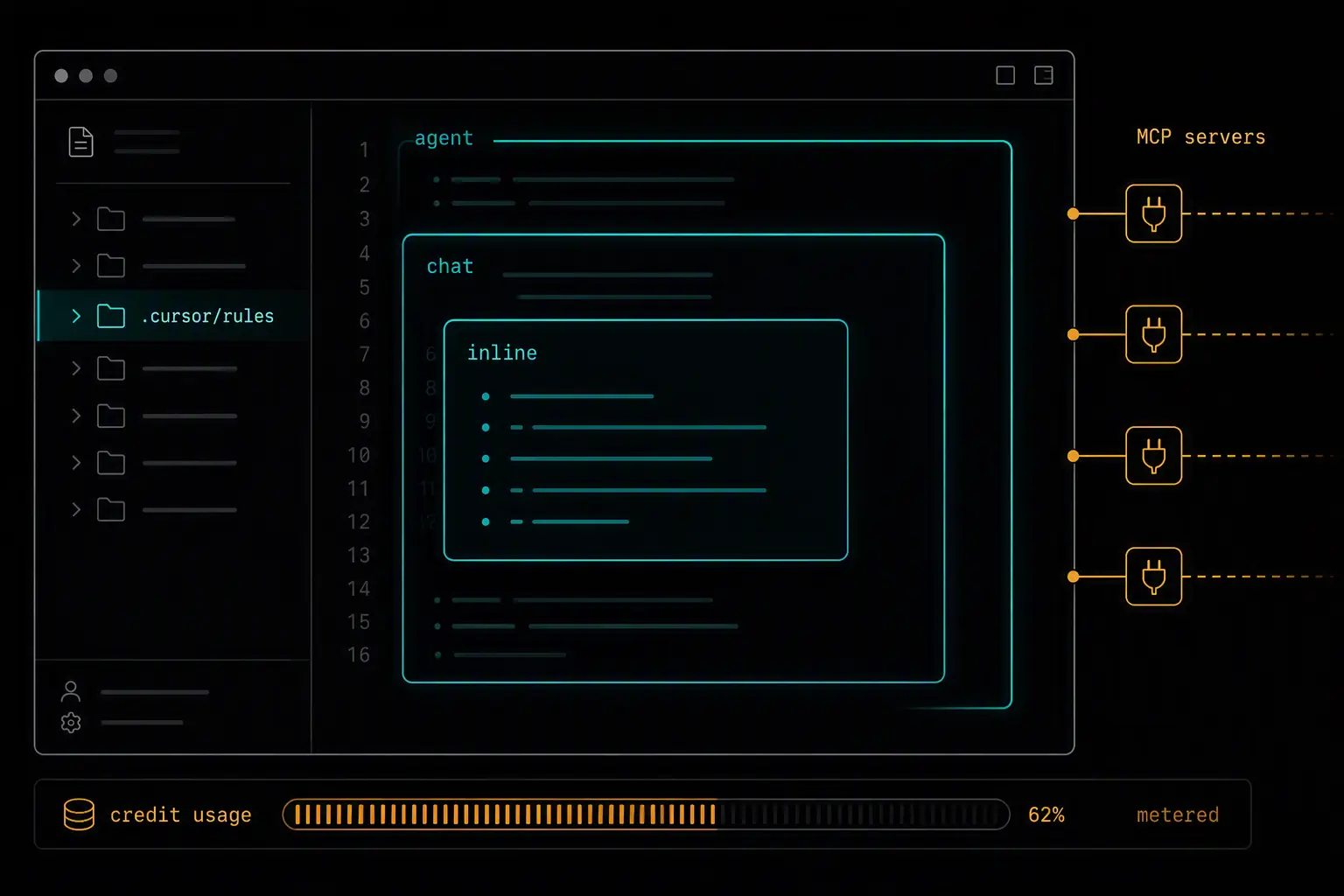
Cursor's pitch is that it feels like your existing editor right up until you need it not to - Tab autocomplete that feels familiar, and then Agent mode, Composer, and Background Agents sitting one keystroke away when a task is bigger than a single suggestion. The gap between "using Cursor" and "using Cursor well" is almost entirely about the .cursor/rules/ directory and MCP configuration most people never open.
This guide covers installing Cursor, bootstrapping a project so the agent understands your codebase and conventions, the different AI surfaces Cursor exposes for different-sized tasks, and the best practices that keep output consistent and credit usage under control. By the end you'll have an environment tuned for your actual codebase rather than Cursor's defaults.
If you're comparing Cursor against other options first, a comparison of the top AI coding agents covers where it fits relative to Claude Code, Copilot, Codex, and Kiro.
What You'll Need
- macOS, Windows, or Linux
- A Cursor account (Free tier available; Pro is the common individual tier, with Team and Ultra plans above it)
- An existing codebase or new project to open - Cursor is a full editor, not an extension
Installing Cursor
Download Cursor directly from its website and install it like any desktop application. On first launch, you can import your existing VS Code settings and extensions during setup, since Cursor is a VS Code fork and shares most of its extension ecosystem.
For CI or scripted workflows, the Cursor CLI is a separate install:
npm install -g @cursor/cli
cursor auth   # opens a browser to sign in
The CLI honors the same .cursor/rules/, MCP servers, and account credits as the desktop editor, and supports headless invocation:
cursor --headless "fix the failing tests in src/auth/" --branch fix/auth
If you use a JetBrains IDE instead of Cursor's standalone editor, a Cursor plugin is available through the JetBrains Marketplace that brings the same models, rules, and MCP servers into that IDE.
Bootstrapping the Ideal Environment
Open a project (File → Open Folder) and watch the status bar - once indexing finishes, Cursor has built local embeddings of your codebase and Tab autocomplete becomes project-aware. That indexing step matters more than it looks; a lot of "Cursor doesn't understand my codebase" complaints trace back to using it before indexing completes on a large repo.
.cursor/rules/: the current standard for project instructions
The .cursor/rules/ directory holds multiple .mdc rule files, each scoped to file globs and tagged with metadata, so Cursor only loads the rules relevant to what you're currently working on rather than dumping every convention into every request:
.cursor/rules/
  backend.mdc      # scoped to src/api/**
  frontend.mdc      # scoped to src/components/**
A rule file looks like:
---
description: React component conventions
globs: ["src/components/**/*.tsx"]
---

- Function components with hooks only, no class components
- Props interfaces declared inline above the component
- Co-locate a `*.test.tsx` file with every component
The legacy single .cursorrules file at the project root still works but is deprecated in favor of the scoped directory approach - new projects should use .cursor/rules/ directly rather than starting with the old format.
Rules apply in a defined priority order: manually included with @ruleName, then auto-attached based on glob matches, then always-applied rules. User Rules (Cursor Settings → Rules) sit above all of this as global, always-applied instructions across every project.
MCP servers: connect Cursor to your actual infrastructure
MCP support is native, letting the agent read and write against real systems - Postgres, GitHub, Linear, Sentry, and more - rather than working from a static snapshot of your code. Configure servers in .cursor/mcp.json:
{
  "mcpServers": {
    "postgres": {
      "command": "npx",
      "args": ["-y", "@modelcontextprotocol/server-postgres"],
      "env": { "DATABASE_URL": "postgresql://localhost/mydb" }
    }
  }
}
Restart Cursor after adding a server. Project-level .cursor/mcp.json is scoped to that repo; a global config in Cursor's settings applies everywhere. Note that loading many MCP servers at once has a real context cost - past roughly ten servers, consider whether you need all of them attached simultaneously versus loaded on demand.
Commit what should be shared
.cursor/rules/ and .cursor/mcp.json (minus secrets, which belong in environment variables) are worth committing to version control so the whole team gets the same scoped rules and tool access without individually reconstructing them.
Core Workflow
Cursor exposes three AI surfaces sized for different tasks:
- Cmd+K (inline edit) - the smallest surface. Highlight code or place your cursor, describe a one-sentence change, accept the diff. Good for targeted edits like "add error handling for network failures."
- Composer / Chat - multi-turn conversation for exploring an approach or making a moderately scoped change across a few files.
- Agent mode - the most autonomous surface, capable of reasoning across many files, running terminal commands, and iterating until tests pass.
For work you'd rather not watch live, Background Agents run in cloud sandboxes while you continue working locally, and BugBot reviews pull requests automatically once configured.
Match the surface to the task size - reaching for full Agent mode on a one-line fix burns more credits and review overhead than Cmd+K would for the same result.
Verifying Your Setup
- Indexing completed - confirm the status bar shows the project as indexed, not still processing
- Scoped rules apply correctly - edit a file matching a rule's glob and confirm the agent's output reflects that rule's conventions
- MCP servers are reachable - ask the agent a question that requires a connected server (e.g., "what's in the users table") and confirm it actually queries it rather than guessing
- Team members get the same rules - have a teammate open the repo fresh and confirm
.cursor/rules/and.cursor/mcp.jsonapply without manual setup
Best Practices
Move from .cursorrules to .cursor/rules/ if you haven't already. The scoped, glob-based directory format is the current standard and avoids dumping every project convention into every request regardless of relevance.
Match the AI surface to the task. Cmd+K for small, targeted edits; Composer/Chat for exploring an approach; Agent mode for genuinely multi-file, multi-step work. Reserve Background Agents for tasks you're comfortable reviewing after the fact.
Add context deliberately with @mentions rather than relying on the agent to find everything. Pointing directly at relevant files, docs, or even screenshots produces more reliably scoped output than a prompt with no attached context.
Watch MCP server count. Loading many servers at once has a real context cost - keep only what a given project actually needs attached, rather than connecting everything available.
Use Git worktrees for genuinely parallel work. Running multiple Cursor instances against separate worktrees lets you work on independent tasks simultaneously without them stepping on each other's changes.
Comparison with Claude Code
| Dimension | Cursor | Claude Code |
|---|---|---|
| Surface | Standalone IDE (VS Code fork) | Terminal, desktop app, IDE extensions |
| Standing instructions | .cursor/rules/*.mdc, scoped by glob |
CLAUDE.md, hierarchical by directory |
| Model choice | Multiple vendors (Claude, GPT, Gemini) plus in-house models | Claude models only |
| Background/async work | Background Agents (cloud sandbox) | Subagents within a session; no native async cloud runner |
| Config portability | Reads .claude/agents, .codex/agents for cross-tool compatibility |
Own hooks/subagents system; MCP servers portable to Cursor |
Both support MCP, and server configurations are largely interchangeable between the two - a server set up for one generally works in the other with minimal adjustment. The practical difference is that Cursor is a full editor with model choice built in, while Claude Code is terminal-first and leans more heavily on scriptable automation (hooks) for enforcing behavior deterministically.
Frequently Asked Questions
Do I need to migrate from .cursorrules to .cursor/rules/?
Not immediately - the legacy format still works - but new projects should start with .cursor/rules/ directly, since it's the current standard and supports scoping rules to specific file globs rather than applying one flat file to everything.
How does Cursor pricing actually work?
Pricing is credit-based: simple completions are effectively free, while complex agent runs against frontier models consume credits faster. Individual, Team, and higher-usage plans differ mainly in how large a credit pool comes included before overage applies. Check current plan details directly, since credit-based pricing structures change more often than flat subscription tiers.
What's the difference between Background Agents and regular Agent mode?
Regular Agent mode runs interactively in your editor - you watch it work and can redirect it mid-task. Background Agents run in cloud sandboxes while you continue working on something else locally, similar in spirit to an async, hands-off workflow, and you review the result when it's done rather than supervising each step.
Can I use MCP servers I've already configured for Claude Code or Claude Desktop?
Generally yes - Cursor and Claude Code speak the same Model Context Protocol, and a server configured for one typically works in the other with little to no modification, since they're both reading the same underlying server package.
How many MCP servers should I connect at once?
Only as many as a given project actually needs attached simultaneously. Loading servers has a real context cost that adds up past roughly ten connected servers, so prefer scoping servers per-project over connecting everything available globally.
Is Cursor's CLI meant to replace the desktop editor?
No - it's meant for scenarios the desktop editor doesn't fit well, like CI jobs that need an agent to fix a regression as part of a pipeline, or shell-scripted bulk edits across many repositories. Day-to-day interactive development is still better served by the full editor.
What's the most common mistake in a first Cursor setup?
Skipping the .cursor/rules/ setup entirely and relying on the agent to infer conventions from surrounding code, plus reaching for full Agent mode on tasks small enough for Cmd+K - both produce less consistent results and burn more credits than necessary for the size of the actual task.
Questions about this? I can help.